Download TextCorrect
Get the latest version of TextCorrect for Windows
Instructions
Make sure you're logged in, then click Download.
Your browser or system may show a warning. That's expected — continue with the download.
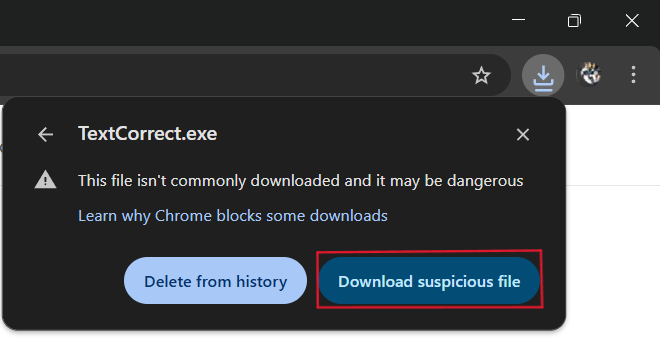
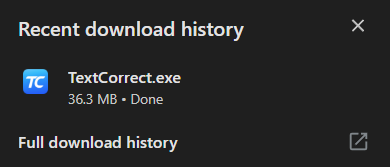
Once the file is downloaded, open it.
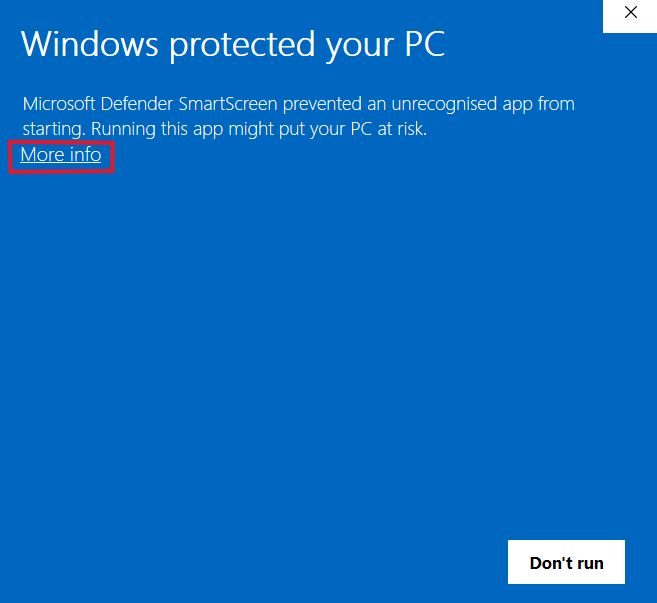
If Windows shows another warning, click More info → Run anyway.
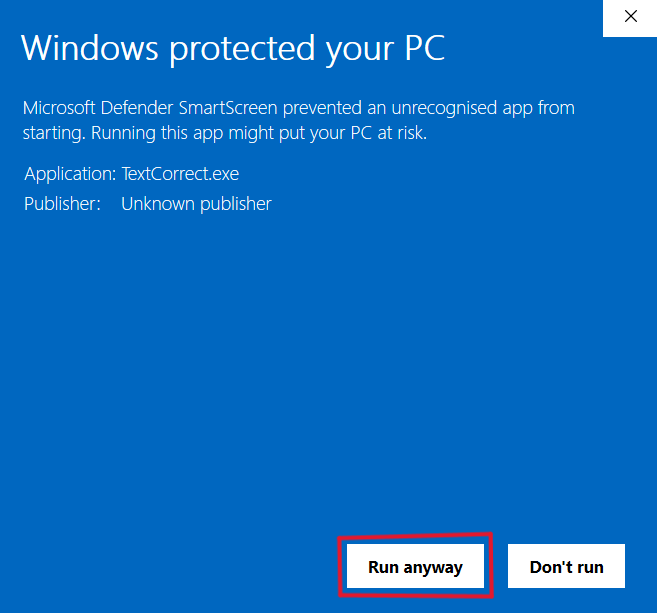
Wait a few moments. A window will confirm that the app has launched.
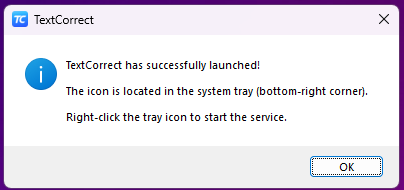
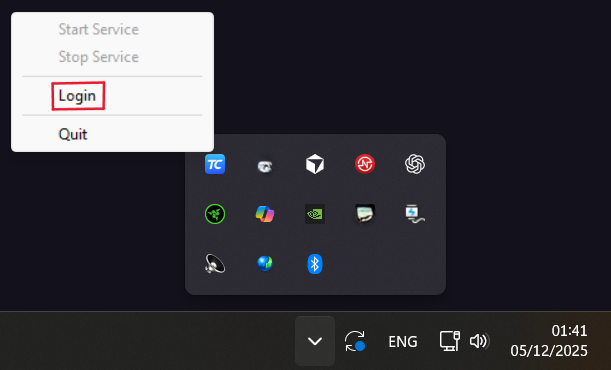
After a few seconds, an icon will appear in the system tray (bottom-right of the taskbar). Right-click it and select Log In if not already.
Check the tray icon again. Make sure Start Service is active (it should appear dimmed and unclickable when running).
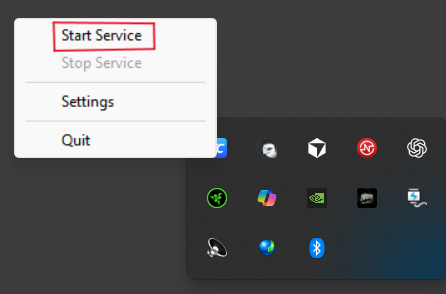
If everything is set up correctly, TextCorrect runs in the background.
Select the whole text or any part of it that you want to polish.
Tip: For quick selection, Use Ctrl + A to select all, or Ctrl + Shift + ←/↑/→/↓ to select sentence/paragraph.
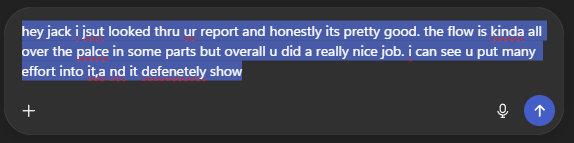
Press Ctrl + ; (default hotkey). A pulsing logo will appear.
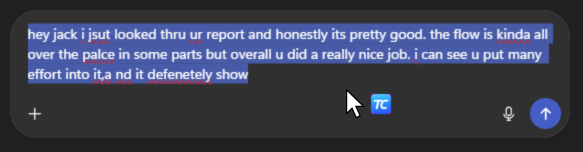
Wait 1–2 seconds — the polished text will replace the original.
Tip: If you don't like the result, press Ctrl + Z to undo.